
Chat
Chat is the conversational interface where you ask Ishvana’s agents questions about your project. It is still multi-threaded, lore-grounded, and agent-aware, but the engine underneath changed in v1.2.0 on May 1, 2026: messages no longer go to external language models or old per-message voice controls. The chat dispatcher classifies the message, routes it to a local Divinity Engine handler, and renders the result through the Authored Library.
The practical effect is clearer attribution. Every assistant bubble can tell you which agent answered and which divinity/<handler> did the work.
Multi-thread conversations
Section titled “Multi-thread conversations”Chat supports multiple independent conversation threads per project. Each thread has its own history, title, message count, selected agent, and project context.
- Create threads — start a new conversation from the sidebar.
- Switch threads — click any thread to load its full message history.
- Rename threads — edit the title when the auto-title is not specific enough.
- Delete threads — remove a thread and its messages after confirmation.
- Search threads — filter the sidebar when you need to find an older discussion.
Use separate threads when the topic changes. A plot-structure thread should not share context with a research-history thread unless you intentionally bring that context in.
Agent selector
Section titled “Agent selector”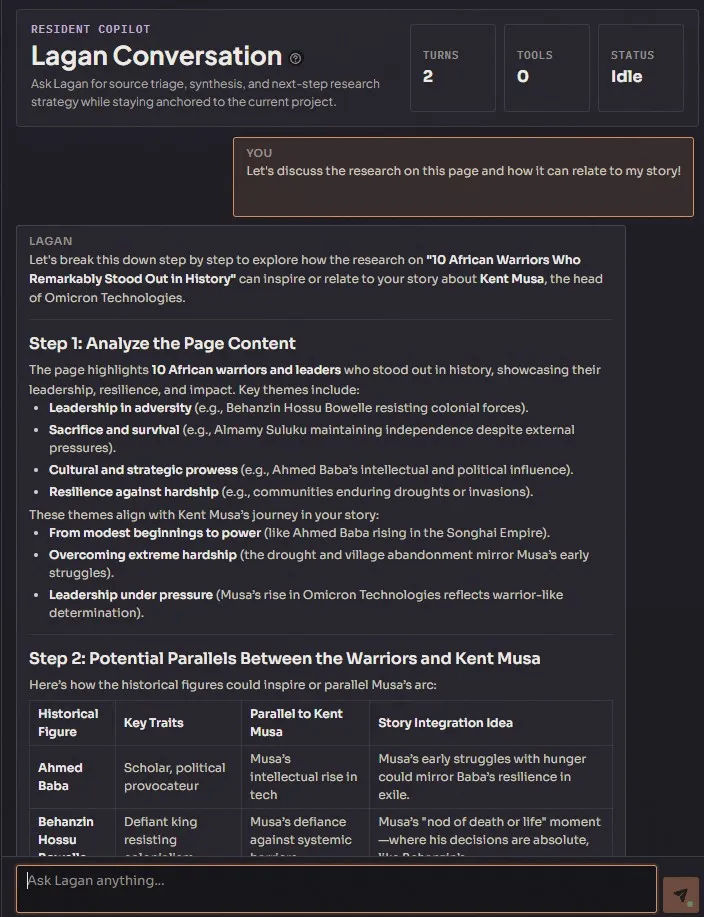
Four agents are directly selectable from Chat:
- Ishvana — the orchestrator. Best when you are asking a mixed question or want the app to route you to the right specialist handler.
- Hawken — writing analysis. Scene scans, chapter scans, manuscript scans, craft feedback, voice drift, pacing, and structure.
- Lagan — research and knowledge. External research workflows, monitored feeds, saved-page analysis, source synthesis, and research insight handlers.
- WorldKnowledge — real-world facts. Wikipedia lookup, world-rules queries, and prose fact checks against real-world claims.
GameMaster and Lorekeeper still exist, but their primary surfaces are the Magic System and consistency panels. Ishvana can route to their handlers when the message calls for them.
Intent suggestions
Section titled “Intent suggestions”As you type, Ishvana can show suggestion chips for likely routing targets. A chip represents a concrete handler, such as a Hawken scene scan or a WorldKnowledge query.
- Click a suggestion chip to force that handler.
- Ignore the chips to let the classifier choose on send.
- If confidence is below the configured floor, the engine asks a clarifying question instead of guessing.
- The resulting message records the handler id, intent id, confidence, and dispatch log id when available.
This replaces the older per-message voice controls. Voice is no longer a dropdown on each message. It comes from the project’s genre overlay and the Authored Library variants attached to the handler result.
@-mentions for lore references
Section titled “@-mentions for lore references”Type @ in the message input to reference lore entries directly:
- Fuzzy search by title as you type after the
@. - Navigate the dropdown with arrow keys; select with Enter or Tab.
- Up to 8 matching entries are shown at a time.
- Selected entries appear as pinned chips above the input area.
- Pinned entries give the routed handler direct access to those entries for grounding.
Mentions are the fastest way to force specific context into a response. If the question is about Kent Musa, pin Kent Musa instead of hoping semantic search picks the same entry you meant.
Writers’ Room mode
Section titled “Writers’ Room mode”Writers’ Room is useful when the question benefits from three angles: orchestration, craft, and research. It is not an external-model cost multiplier; it is a local multi-dispatch workflow. The tradeoff is time and screen space, not token billing.
Streaming and progress
Section titled “Streaming and progress”Responses stream in real time with visible pipeline progress:
- Before the final text lands, the UI can show relevant source context and handler progress.
- Thinking steps show completed pipeline stages with timing.
- Long handlers emit progress chunks and then a terminal result.
- Metadata captured with every response includes agent, handler id, confidence, sources, dispatch id, and duration.
The point is transparency. You can see what ran, where the context came from, and where to look in Etherforce Observability if a response surprises you.
Context panel
Section titled “Context panel”The right-side Context panel shows:
- Sources — lore entries, documents, or research context used to ground the response.
- Agent and handler — who answered and which local handler produced the result.
- Confidence and quality — classifier score and context quality when available.
- Timing — dispatch duration and progress metadata.
Click any assistant message to view its metadata. The handler id links the chat bubble back to the same dispatch record shown in Etherforce Observability.
Keyboard shortcuts
Section titled “Keyboard shortcuts”| Key | Action |
|---|---|
| Enter | Send message |
| Shift+Enter | New line in input |
| @ | Open lore mention autocomplete |
| Arrow Up/Down | Navigate mention dropdown |
| Enter / Tab | Select mention |
| Escape | Dismiss mention dropdown or abort the active stream |