
The Legendry
Every fantasy author ends up building the same thing twice. Once in their head, and once in whatever scattered collection of Google Docs, Notion pages, sticky notes, and index cards they use to track which character died in chapter three, whether the capital city is “Orindell” or “Orendil,” what the rules of magic actually are, which faction is allied with which in the current draft, and what the protagonist’s mother’s name was supposed to be. The second version is never as good as the first. And it’s the version you actually have to use when you’re writing.
The Legendry is where that second version lives. Not as a flat list of files. Not as a wiki you have to maintain in a separate browser tab. As a structured database that your writing tools actually read from.
When you mention a character in a scene, the editor knows who they are. When the Lorekeeper runs a consistency check, it reads from here. When Hawken gives you feedback on a chapter or sketches a rough scene draft for you to rework, it pulls voice profiles, relationships, and canon context from here. Your prose and your Legendry are the same project. The two of them aren’t separate things you have to manually keep in sync.
This page is the full reference for the Legendry — every entry type, every view mode, every operation. It’s long because the Legendry is the beating heart of everything else in Ishvana, and a thin page wouldn’t do it justice.
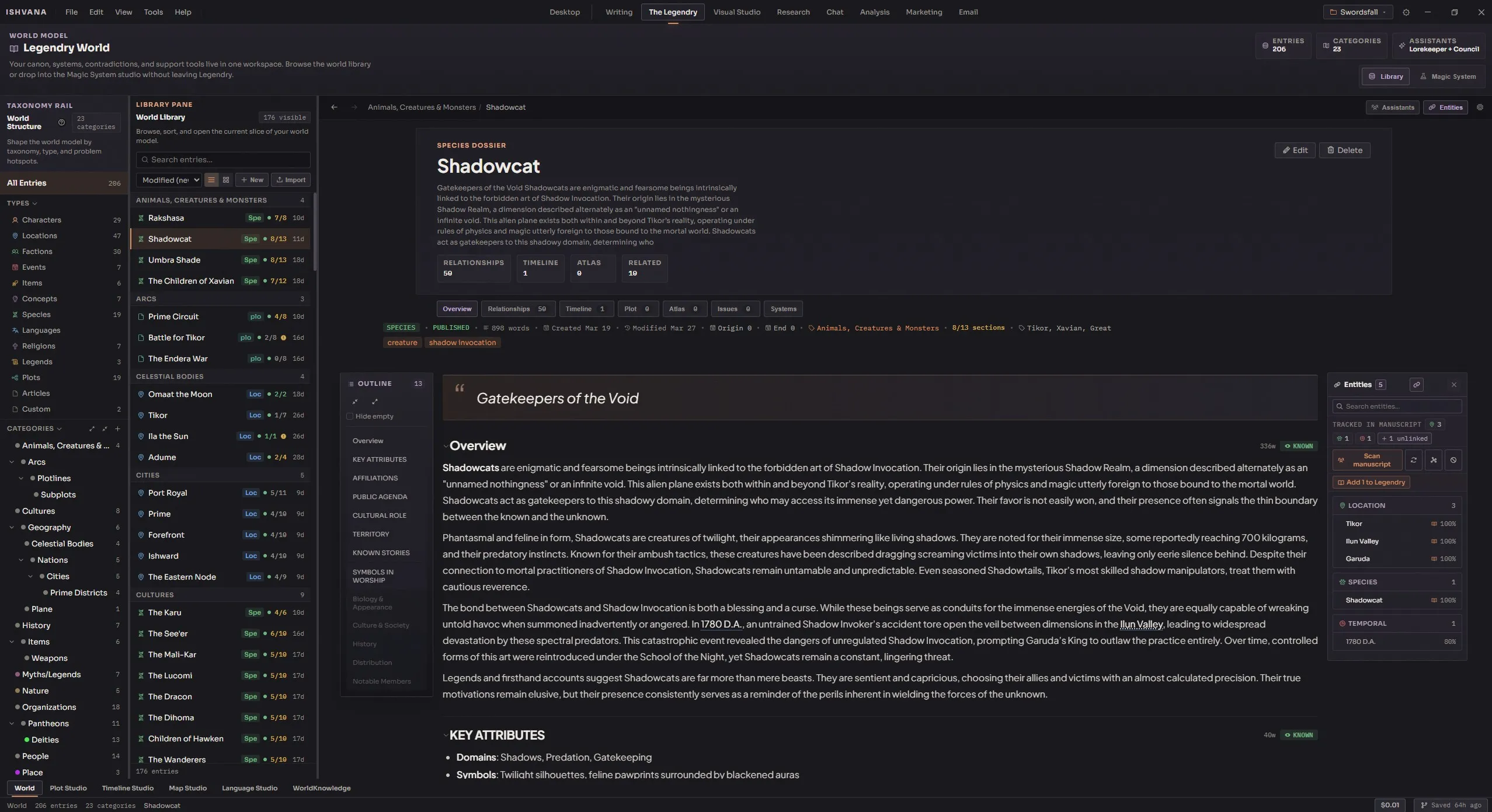
Twelve entry types
Section titled “Twelve entry types”Every entry in the Legendry has a type, and each type loads a different section template when you create an entry. The type shapes the entry’s default structure, determines which views apply to it, and tells the rest of Ishvana what kind of thing this is.
- Article — general-purpose freeform entries. Use this for anything that doesn’t fit another type.
- Character — background, personality, appearance, abilities & skills, relationships, history, goals & motivations.
- Location — geography, history, culture, notable inhabitants, points of interest, climate & environment.
- Item — description, history, properties & abilities, current location/holder, significance.
- Event — overview, causes, key players, consequences, timeline, aftermath.
- Faction — origins, leadership, membership, goals & ideology, notable members, customs & traditions, territory & influence.
- Concept — definition, origins, applications, variations, cultural significance.
- Species — biology & appearance, culture & society, history, distribution, notable members.
- Language — overview, grammar & structure, usage & speakers, script & writing, dialects.
- Religion — core beliefs, practices & rituals, history, divine figures, sacred sites, followers.
- Legends — origin, narrative, variations, cultural significance, key figures, morals & themes, historical basis.
- Custom — freeform, no predefined sections.
Section templates load instantly when you create an entry. You can add, remove, reorder, and rename sections freely — the template is a starting point, not a cage. Each section has a status indicator (Known, Unknown, or Secret), a word count, and completeness tracking. Freeform types (Article, Custom) use a full rich-text editor instead of sections.
Hierarchical categories
Section titled “Hierarchical categories”Categories organize entries into groups — “Geography,” “Characters,” “Magic System,” “Northern Factions,” or whatever structure matches your project. The category tree is how you keep hundreds or thousands of entries navigable without drowning in a flat list.
- Nested subcategories. Create child categories via the context menu. Depth is unlimited.
- Entry counts displayed per category. You see which categories are thick and which are thin.
- Color coding for visual identification. Purely cosmetic, but genuinely useful when you have many categories.
- Drag and drop. Drag entries onto categories to recategorize. Drag categories onto other categories to reparent. No forms, no dialogs — just drag.
- Uncategorized virtual group collects any entries you haven’t placed yet so nothing gets lost.
Categories are per-project. You can copy a category structure between projects by exporting and importing — or you can start each project fresh and let the structure emerge from your actual needs.
Browsing entries
Section titled “Browsing entries”Two layout modes for the entry list, switchable from the toolbar:
A virtualized list for smooth scrolling through thousands of entries, grouped under category headers. Best when you know what you’re looking for and want to scan by title.
A responsive card grid showing entry cards with type icons and metadata. Best for visual browsing — good for projects with lots of character entries where you want to see them all at once.
Both views show the same data, just displayed differently. Pick whichever feels right for the moment and switch when your needs change.
Search and filtering
Section titled “Search and filtering”The Legendry’s search does more than you’d expect for a worldbuilding database:
- Hybrid search. Combines keyword matching and semantic search for intelligent results. Type a query and you get exact-match hits plus conceptually-similar entries.
- Category filter. Click a category in the tree to show only its entries. Useful when you know an entry is in a specific category.
- Type filter. Filter by any of the 12 entry types with live counts per type.
- Status filter. Filter by Draft, Published, or Archived.
- Active filter chips. See and remove individual filters at a glance.
- Clear all to reset every filter at once.
The hybrid search is the most powerful feature and the one most authors underuse. Semantic search lets you find “something about sacrifice being central to power” even when none of those exact words appear in the matching entries. See Semantic Search for the conceptual background on how this works.
Sorting
Section titled “Sorting”Sort entries by seven criteria: Name (A-Z / Z-A), Modified (newest/oldest), Created (newest), Word count (highest), and Anomaly score (highest). Sort by Modified to see what you’ve been working on recently; sort by Anomaly score to surface entries that Lore ML has flagged as unusual.
The detail panel
Section titled “The detail panel”Selecting an entry opens the detail panel with two modes:
Read-only display of the entry. What you see:
- Header — title, type, category, status badge, author, and tags.
- Summary and excerpt — short-form description.
- Sections displayed as collapsible panels with status indicators (Known/Unknown/Secret). Collapse/expand all controls let you focus; a toggle hides unknown sections when you want to see only what you’ve established.
- Freeform content rendered as formatted text with entity highlighting — any other entity mentioned in the body gets linked.
- Relationships to other entries, each showing the relationship type and a clickable link to the target entry.
- Visual assets — attached images from the Visual Gallery.
- Maturity score and cluster information from Lore ML — how developed and interconnected the entry is relative to the rest of your world.
- Word count per section and section completeness tracking.
Full editing for every field:
- Inline field editing for title, type, category, status, author, tags, summary, and excerpt.
- Rich text editing for freeform content with a full toolbar.
- Section editing with status cycling, drag-and-drop reordering, move up/down buttons, and the ability to add custom sections or remove existing ones.
- Tag management inline — add and remove tags without leaving the panel.
- Unsaved changes guard — prompts you if you try to switch entries with unsaved edits.
Voice profiles
Section titled “Voice profiles”Voice profiles are one of the Legendry’s most valuable features and one of the ones new users discover last. Available on Character, Faction, Religion, and Species entries, voice profiles define how a character or group speaks — and Hawken reads them whenever it’s giving you feedback on dialogue or sketching a scene that involves that character.
Fields on a voice profile:
- Register. Seven options — Formal, Informal, AAVE, Dialectal, Archaic, Colloquial, Custom — that shape vocabulary and sentence structure.
- Allowed words. Words acceptable for this voice even if ProseGuard would normally flag them. A Victorian-era character saying “shan’t” is fine.
- Allowed phrases. Multi-word phrases accepted for this voice.
- Grammar exceptions. Specific grammar rules suppressed for this voice (double negatives for a character who speaks that way, dropped articles for a non-native speaker, etc.).
- Example passages. Sample text demonstrating the voice. Hawken reads these directly to calibrate tone before commenting on or sketching dialogue for the character.
- Notes. Freeform notes about the voice — anything that helps you (or Hawken) remember how the character speaks.
The example passages are the most useful field. Three or four short sample exchanges of the character speaking gives Hawken enough to reproduce the voice reliably. A voice profile without example passages is workable but much weaker.
Relationships
Section titled “Relationships”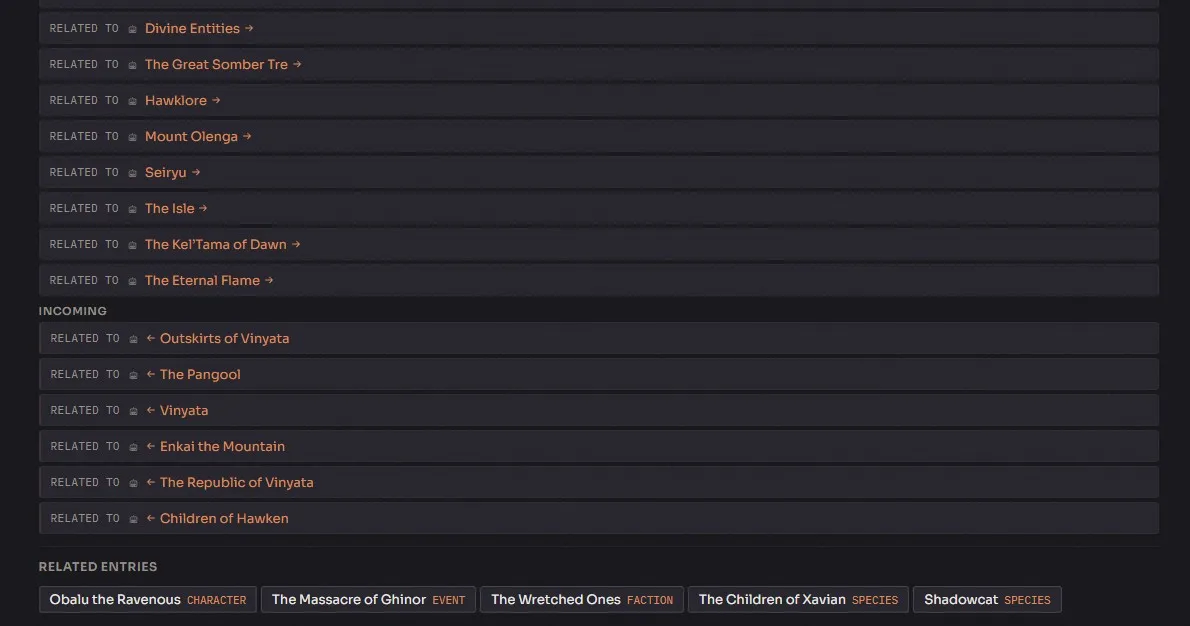
Build a web of connections between entries. Every entry can have any number of relationships to other entries, each with a type (“ally of,” “enemy of,” “parent of,” “located in,” whatever makes sense) and an optional description.
- Add relationships from the detail panel with a target entry, relationship type, and optional description.
- View both outgoing and incoming relationships — the other direction shows up automatically.
- Click any relationship link to navigate to the connected entry.
- Remove relationships individually.
The relationship graph is what Lore ML analyzes when it builds community detection, betweenness centrality, and the entity importance rankings. The more thoroughly you’ve connected your Legendry, the better every structural analysis gets.
Entry operations
Section titled “Entry operations”Day-to-day operations:
- Create — new entry with title, type, category, and initial content.
- Duplicate — creates a copy with “(copy)” appended, reset to Draft status. Useful for creating variants of a character or template.
- Delete — with confirmation dialog. Permanently removes the entry and its relationships.
- Import — ingest files (PDF, DOCX, MD, Obsidian, and others) or paste text directly. The analysis engine auto-detects entry type, extracts sections, identifies tags, and generates a summary. See Import & Export for the full details.
Navigation
Section titled “Navigation”
The Legendry has navigation features that matter more than they look:
- Browser-style navigation. Back and forward history when clicking between entries, same as a browser. Click an entry, click a relationship to another entry, click a relationship on that one — you can always navigate back to where you were.
- Quick switcher. A fast entry search across the entire database. Useful when you remember an entry name but don’t want to navigate through the tree.
- Context menu. Right-click entries for Open, Rename, Duplicate, Delete.
Machine learning features
Section titled “Machine learning features”The Lore ML pipeline runs against your Legendry and surfaces several kinds of analysis:
- Anomaly detection — entries receive an anomaly score identifying outliers (unusually isolated, unusually short, unusually disconnected).
- Clustering — entries get grouped into related clusters with labels and depth scores. See which parts of your world cluster together and which are isolated.
- Contradiction detection — identifies potential contradictions between entries.
- Maturity scoring — entries are scored on completeness with a tier label. Tells you which entries are stubs and which are fully developed.
The ML features run on demand, not continuously. Open the Lore ML panel in the Analysis workspace to run the pipeline — it takes a few minutes for a large Legendry and produces results that inform the rest of your workflow.
Lorekeeper consistency checking
Section titled “Lorekeeper consistency checking”The Lorekeeper agent runs consistency checks between your prose and your Legendry. Open the Lorekeeper panel, run a check on a document, and you get a scored report with specific issues, severity levels, and fix suggestions. It’s the safety net that catches contradictions before a beta reader does.
How it all fits together
Section titled “How it all fits together”The Legendry connects to almost every other module in Ishvana, and the connections are the reason it’s worth spending real time on:
- The editor highlights entities in your prose and links them back to the Legendry.
- Hawken reads the Legendry before any feedback or sketch, including voice profiles whenever dialogue is involved.
- Ishvana (the orchestrator) searches the Legendry when answering questions about your world.
- Lorekeeper uses the Legendry as ground truth for consistency checking.
- The Plot Studio references Legendry entries as participants in plot beats.
- The Timeline Studio references Legendry entries for event participants.
- The Magic System uses Legendry entries for stat block targets.
- The Character Sheet Designer links sheets to Legendry entries for stat-block sync.
- The Marketing module pulls Legendry context for copy generation.
- Entity Detection runs against the Legendry to identify mentions in new prose.
Every one of those connections makes the Legendry more valuable the more you put into it. An empty Legendry produces generic agent output and shallow consistency checks. A thorough Legendry makes every other feature in Ishvana work the way it’s supposed to.
How to build it out
Section titled “How to build it out”-
Start with the protagonist. Create a character entry for your main character. Fill in background, personality, appearance, goals. Spend real time on this one — it’s the entry every other entry will reference.
-
Add the primary location. The main city, country, or world where the story happens. Geography, history, culture.
-
Add the antagonist and the supporting cast. Work outward from the protagonist. Every character who gets a name in chapter one deserves an entry.
-
Add factions and organizations. Anything your characters belong to, work for, fight against, or owe allegiance to.
-
Add concepts and systems. The magic system, the political system, the religious system — whatever structural elements define how your world works.
-
Build relationships. As entries accumulate, connect them. Protagonist is parent of X. X is member of Y faction. Y faction is located in Z region. The graph becomes your world’s connective tissue.
-
Add voice profiles for main characters. Once a character has had a few scenes, add a voice profile with example passages so Hawken’s feedback and sketches stay in their voice.
-
Come back and refine. The Legendry is a living document. Every chapter you write teaches you something about your characters — update the entries as you learn.