
Timeline Studio
Time is the thing most fantasy and science fiction writers get wrong, and the reason is structural. A single book rarely has enough chronological complexity to demand a formal timeline — “chapter one happens Monday, chapter two happens Tuesday” is fine. A series does, though. By the time you’re three books into a project with a thousand years of backstory, multiple characters whose histories intersect at specific points, an explicit ancient war whose date needs to be consistent across every reference, and a current timeline where events unfold in parallel across five viewpoint characters, you have a timeline problem. The Timeline Studio exists to solve it. It’s a structured chronological database where you define events with dates and descriptions, organize them into plotline swimlanes for parallel narrative threads, link them to characters and locations and documents and other events, and visualize everything through three view modes that each answer a different kind of question. Plus full support for custom fantasy calendars, because most worldbuilding-serious projects eventually decide the Gregorian calendar isn’t going to work for a world with three moons and a five-thousand-year imperial chronology.
Timeline management
Section titled “Timeline management”Every project can have any number of timelines, each with its own scope and configuration. A project might have one master timeline covering the whole world’s history, or separate timelines for each book in a series, or specialty timelines for specific subplots. Every timeline has:
- Name and description.
- Time scale. Years, decades, centuries, eras, or ages. The scale determines how events get displayed and how the minimap aggregates them.
- Era label. A custom label for the era system. “Before Ascension,” “After the Fall,” whatever framing fits your world.
- Start and end dates. Supports fictional date formats via custom calendars.
- Tags for organization and filtering.
- View mode. Linear, swimlane, or overview — switchable at any time without losing data.
Events
Section titled “Events”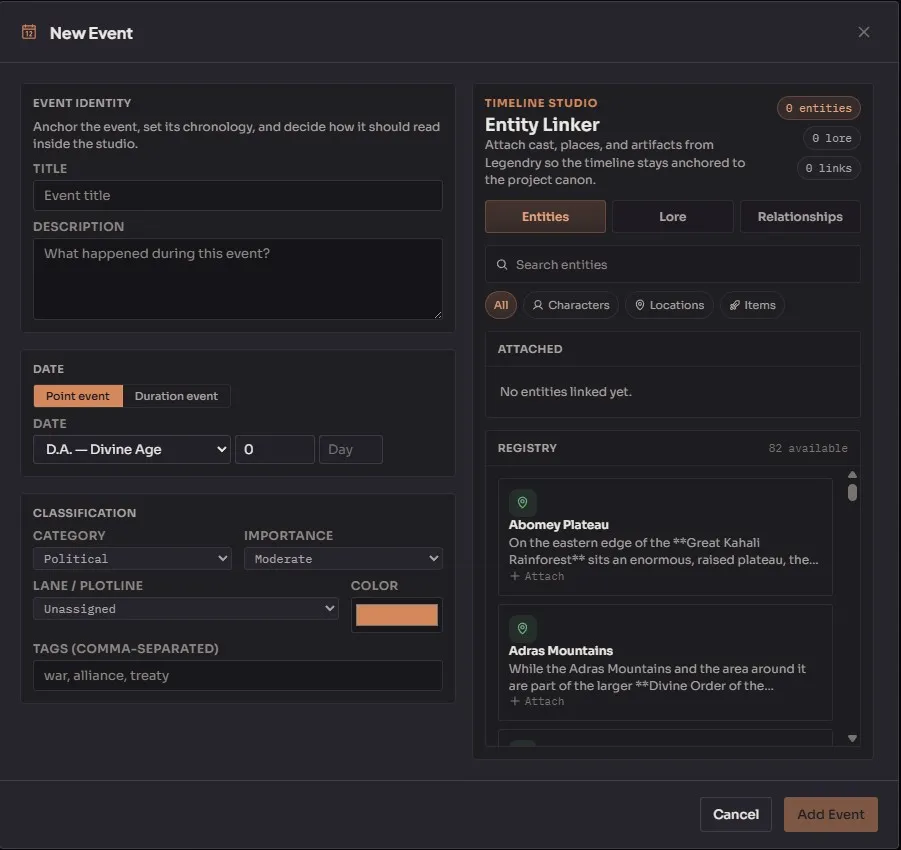
Events are the atomic unit of a timeline. Every event has:
- Title and description.
- Display date. A string format that supports both real-world dates and fictional calendar dates.
- Duration support. Optional end date for events that span time (a war, a reign, a famine).
- Era. For grouping events within the timeline’s larger structure.
- Category. Political, cultural, technological, war, religious, natural, or economic. Categories drive the color coding and filter options.
- Importance. Minor, moderate, major, or critical. Importance determines visual weight in the displays — critical events show up larger and bolder.
- Color override per event if you want to break from the category default.
- Lane assignment. Events can belong to one or more plotlines (swimlanes).
- Tags for organization.
The category and importance together give you a rich filter system. “Show me only critical war events” narrows a thousand-year timeline to the handful of moments that actually matter for the current book’s backdrop.
Plotlines (swimlanes)
Section titled “Plotlines (swimlanes)”Organize events into parallel narrative threads via plotlines — called swimlanes when displayed in the swimlane view. A plotline is a named horizontal track that groups related events across time:
- Create, rename, reorder, and delete plotlines.
- Color and sort order per plotline.
- Bind to lore entities. A plotline can be bound to a specific character or faction, so “Kyo’s Arc” is automatically linked to the Kyo lore entry.
- Collapse and expand individual plotlines. Hide the lanes you’re not currently interested in.
- Events can belong to multiple plotlines simultaneously. A single battle might be relevant to both “The War Council” plotline and “Kyo’s Arc” — assign it to both and it shows up in both swimlanes.
- Move events between lanes via drag.
Event links
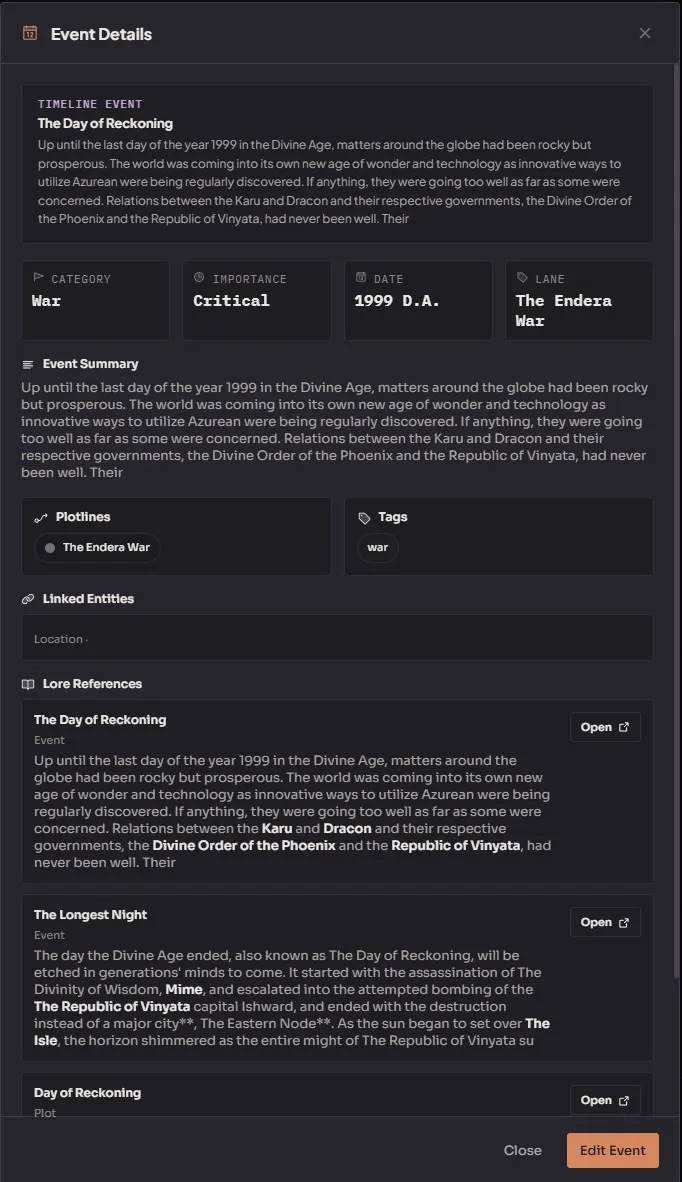
Section titled “Event links”Link events to other entities in your project. This is what makes the timeline more than just a list of dates:
- Link targets: characters, locations, documents, lore entries, items, or other events.
- Optional relationship label on each link — “present at,” “affected by,” “caused by,” whatever describes the connection.
- Query all events linked to a specific entity across all timelines. Useful for answering “when does this character appear in the world’s history?”
The cross-reference between the timeline and your Legendry is where the timeline stops being a reference document and starts being a live navigation system. Click a character in the Legendry, see every timeline event they’re linked to.
Event relationships
Section titled “Event relationships”Define cause-and-effect and temporal relationships between events. Five relationship types:
- Causes — this event directly caused the other.
- Follows — this event came after the other, implicitly because of it.
- Simultaneous — these events happened at the same time, possibly in different locations.
- Contradicts — these events are described inconsistently somewhere and need reconciliation.
- Enables — this event made the other possible without directly causing it.
Relationships show up in the swimlane view as connecting lines between events. A densely-connected web tells you which events are structurally central to your world’s history; sparse areas tell you which eras are underdeveloped.
Lore links
Section titled “Lore links”Dedicated links between timeline events and Legendry lore entries with three link types:
- References — the event references the lore entry (a treaty signed by a named character).
- Auto-created — the event was generated automatically from a lore entry (rare, useful for events derived from character birthdates or founding dates).
- Derived from — the event’s content was pulled from the lore entry’s body.
These are more specific than generic event links because they encode the relationship type cleanly for analysis tools.
Arc points
Section titled “Arc points”Track character emotional arcs along the timeline. An arc point is a specific moment where a character’s emotional state gets a numeric valence score (0-100). Tracking arc points per plotline lets you see the emotional trajectory of a character across the timeline — rising confidence, descending despair, whatever shape the character’s arc follows.
Arc points complement the Plot Studio’s intensity-based arc chart with a chronological dimension. Arc chart shows emotional state by plot position; arc points show emotional state by date.
View modes
Section titled “View modes”Three view modes, each for a different kind of question about your timeline.
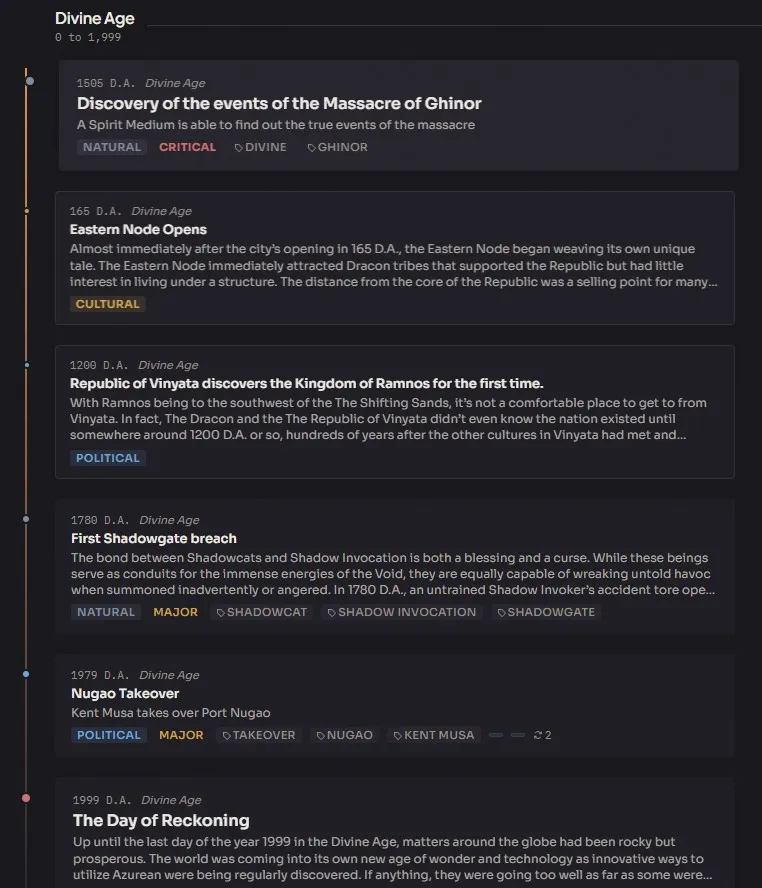
A vertical chronological list of events. Each event card shows title, date, category badge, importance indicator, and description preview. Scroll through history sequentially, newest to oldest or oldest to newest.
Linear view is the best for reading the timeline — when you’re trying to understand the flow of history in order, one event at a time. Good for writing flashback chapters or researching a specific era.
Events organized into horizontal plotline lanes. Each lane is a narrative thread; events are positioned horizontally by date. Relationship lines connect causally linked events across lanes.
Swimlane view is the best for visualizing parallel threads — when you want to see how multiple plotlines unfold simultaneously and where they intersect. Good for series-level work or complex plots with multiple viewpoint characters.
A condensed bird’s-eye view of the entire timeline with minimap support for navigating large histories. Events compress into dots or tiny blocks depending on the zoom level; the minimap shows the overall density at a glance.
Overview view is the best for spotting gaps and overall shape — when you want to see the entire five-thousand-year history of your world at once. Good for planning backstory coverage or finding underdeveloped eras.
Calendar systems
Section titled “Calendar systems”Define custom fantasy calendars when the Gregorian one doesn’t fit your world:
- Calendar management. Create calendar systems with custom eras, month names, day names, and epoch labels.
- Date format templates — pattern syntax like
"{era} {year}, {month} {day}"for fictional date strings. - Date conversion functions. Compute sort keys so dates sort correctly, format dates for display, calculate character ages from birth dates.
- Events can reference a specific calendar system. Different timelines can use different calendars if your world has multiple cultural calendars.
Date extraction
Section titled “Date extraction”Ishvana can automatically extract dates from your manuscript text. The extractor recognizes:
- Real-world date formats.
- Fantasy date patterns (e.g., “3rd of Telenor” for a custom calendar).
- Calendar-specific dates that match your configured calendar systems.
Extracted dates get suggested as new timeline events, deduplicated against existing events so you don’t get duplicate entries for the same date. This is especially useful for importing a manuscript that already contains dated scenes — the extractor pulls the dates out and creates a starter timeline that you refine afterward.
Filtering and search
Section titled “Filtering and search”The timeline’s filter system is robust:
- Category filter — political, cultural, war, etc.
- Importance filter — minor to critical.
- Plotline filter — show only events in specific lanes.
- Tags filter.
- Date range filter.
- Search text — full-text search across event titles and descriptions.
- Semantic search for meaning-based matching.
Filters compose. You can view “all critical war events in the ‘Rise of the Empire’ plotline between year 100 and year 500” as a single filtered view.
Timeline settings
Section titled “Timeline settings”Per-timeline display options:
- Show or hide the grid, labels, and relationship lines.
- Color-by mode — color events by category, importance, or plotline.
- Compact mode for denser display.
- Event card width and lane height for visual tuning.
- Minimap toggle.
- Zoom state persists between sessions.
A typical workflow
Section titled “A typical workflow”- Create a new timeline with appropriate time scale and date range.
- Add events with dates, descriptions, categories, and importance levels.
- Create plotlines for your major narrative threads.
- Assign events to the relevant plotlines — remember events can belong to multiple lanes.
- Link events to characters, locations, and lore entries for cross-referencing.
- Define event relationships (causes, follows, contradicts) to build a causal web.
- Set up a custom calendar if your world needs one, then assign it to the timeline.
- Switch between linear, swimlane, and overview views depending on what you’re trying to see.
- Use filters to focus on specific eras, plotlines, or categories.
- Link the timeline to Plot Studio plotlines for combined temporal and narrative views.