
Research Browser
Research is the part of writing nobody talks about. You’re two chapters into a draft and your character needs to pick a lock, or name a medieval siege weapon, or survive a mountain pass in February, and suddenly you’re three tabs deep in Wikipedia trying to remember if trebuchets came before or after mangonels. An hour later you’ve read six articles, bookmarked two of them in a browser you’ll never open again, copy-pasted a quote into a scratch file on your desktop, and lost the thread of the scene you were actually writing. The research did its job — you know the thing now — but the cost of context-switching out of the draft and back in was enormous, and the knowledge you gathered is nowhere useful. It’s in your head, or in a text file, or in browser bookmarks that’ll be meaningless in six weeks.
The Research module is Ishvana’s answer to that problem. It’s a full Chromium browser built into the app, which sounds like a small thing and isn’t. When your browser lives inside your writing tool, the research doesn’t go somewhere else — it stays in the same place your prose lives, and the agents that help you write can actually see what you’re reading.
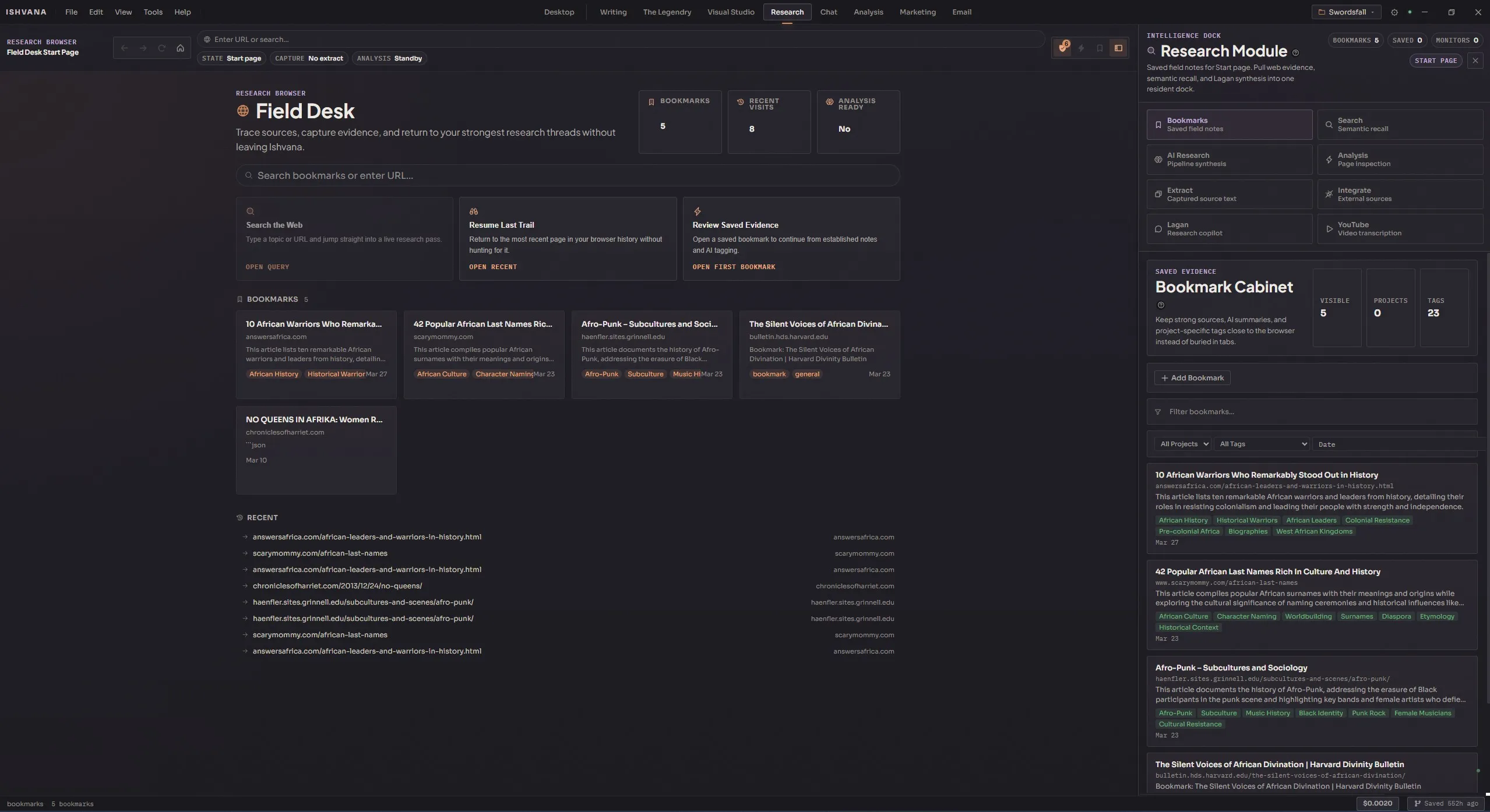
This page is the overview. The subsections below cover each part in depth — the browser itself, smart bookmarks with auto-tagging, the full research pipeline, semantic search, page analysis, content extraction, how research integrates with the rest of the app, and the specialist tabs for Lagan Chat and YouTube research.
The embedded browser
Section titled “The embedded browser”A real browser. Not an iframe, not a scraped HTML preview — a full Chromium webview with persistent sessions, back and forward navigation, reload, stop, home, and a URL bar that doubles as a search box. Type a query without dots and it sends you to Google. Type a URL and it navigates directly. Cookies persist, logins persist, and every page behaves the way it would in Chrome because it’s the same engine underneath.
The reason to have a browser built in isn’t that web browsers are broken. Chrome and Firefox work fine. The reason is that when you’re researching while drafting, every context switch is a tax — alt-tab to Chrome, look up the thing, copy the fact, alt-tab back, try to remember where you were. An in-app browser collapses the tax to zero. You’re still in Ishvana. The sidebar still has your project. The agents still see what you’re reading.
Smart bookmarks Agent
Section titled “Smart bookmarks ”One-click save on the current page. The bookmark stores the URL, the title, the extracted article content, any tags you add yourself, and a layer of auto-generated tags with a one-paragraph summary generated automatically. Sort by date, project, or alphabetically. Filter by project or tag. Search across all of them.
The auto-tagging is the part that makes bookmarks useful instead of another pile of links to forget about. You save an article about medieval sieges and the system tags it history, warfare, medieval, tactics, writes a three-sentence summary, and files it. Three months later you’re working on a siege scene and you type “siege” into the bookmark search — every relevant page you’ve ever saved surfaces with its summary ready to read. The bookmarks become a real research library instead of a graveyard.
Page analysis
Section titled “Page analysis”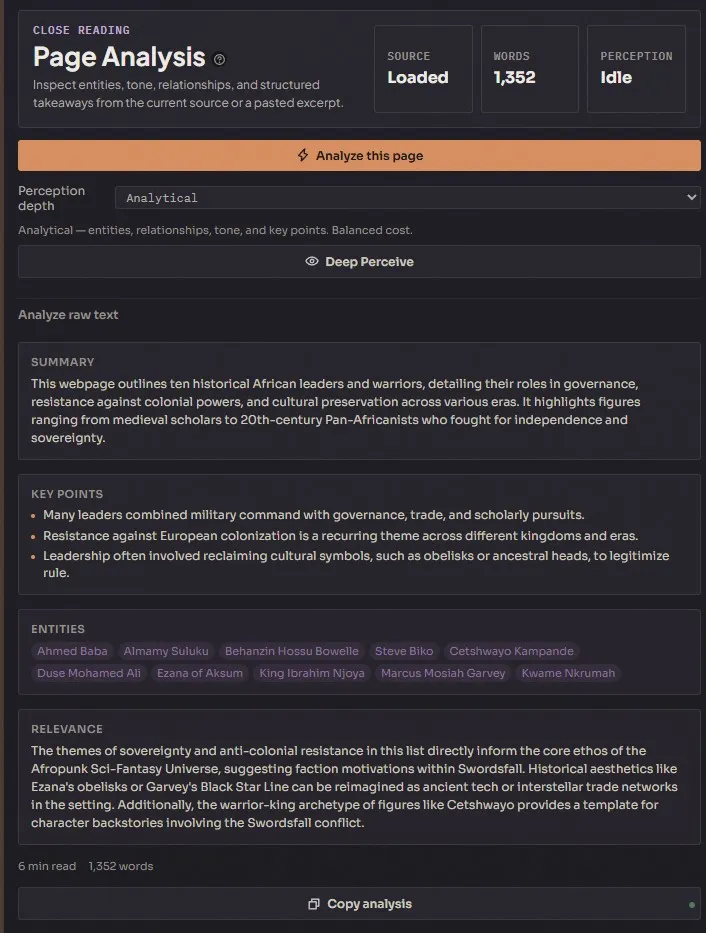
Click Analyze on any page and Lagan reads the whole thing and returns a structured breakdown — a summary in paragraph form, key points extracted as a list, entities identified (people, places, concepts, dates), a relevance score against your active project, and estimated reading time with word count.
Use it when you land on a long article and you’re not sure it’s worth reading in full. Lagan gives you the shape of it in ten seconds. You decide whether to read the rest or move on. For research-heavy genres — alt-history, hard sci-fi, anything with real-world grounding — this single feature saves hours per draft.
Content extraction
Section titled “Content extraction”Every page you load gets its main article content extracted automatically in the background. The system looks for article elements, main content containers, and common content selectors, falls back to the largest text block if none of those exist, and caps the result at 50,000 characters. Strips nav, ads, footers, comment sections, sidebar widgets — all the page furniture that isn’t the actual content.
The extracted text is what bookmarks store, what analysis runs on, and what semantic search indexes. You never see it unless you pull it up in the sidebar’s Extract tab — but everything else in the module depends on it working correctly.
Two-layer ad blocker
Section titled “Two-layer ad blocker”Built in. Two layers:
- Request filtering blocks ad network requests before they ever load. Google Ads, Taboola, Outbrain, and a long list of others. Toggle it via the shield icon in the toolbar — the icon shows a badge with the blocked count.
- DOM cleanup hides any ad containers that still get through, with a mutation observer watching for dynamically inserted ads. Popup blocking is included.
The reason this matters isn’t philosophical — it’s that research tabs full of ads are slower, more distracting, and harder to read. A clean page loads faster, analyzes faster, and doesn’t break your concentration when a video ad autoplays in the sidebar.
Bookmarks dashboard
Section titled “Bookmarks dashboard”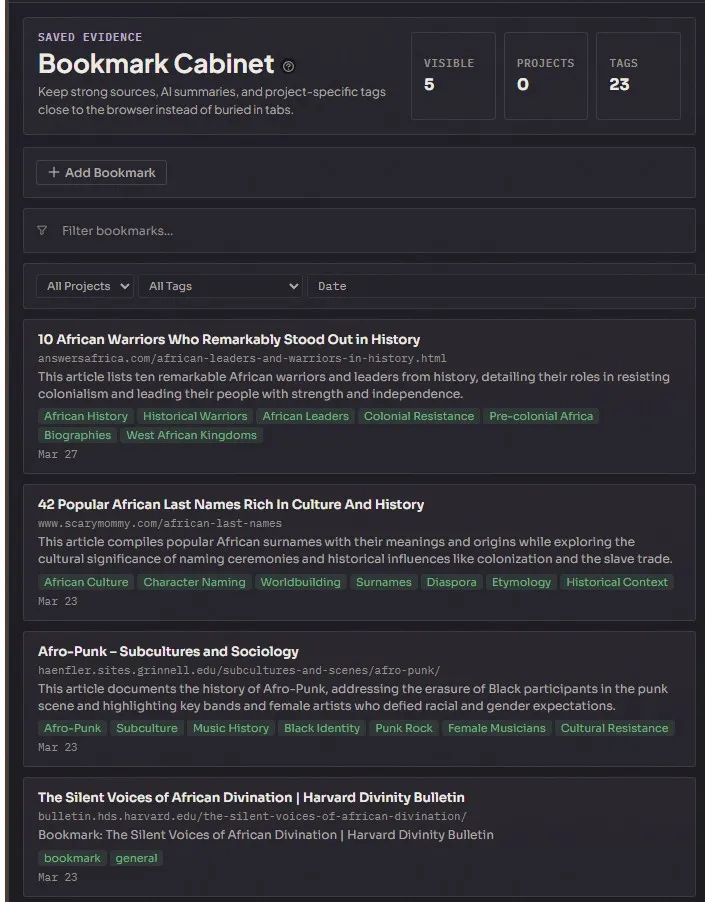
The start page when the browser has no URL loaded. A searchable card grid of every bookmark you’ve saved — title, domain, summary, tags, creation date. A Recent section at the top showing the last ten pages from browser history. Click any card to jump back to that page.
This is the view you open instead of typing a URL when you’re starting a research session. You skim the grid, remember what you’ve already read, decide whether to re-read something or move on.
The research sidebar
Section titled “The research sidebar”A collapsible panel on the right with three tabs:
- Bookmarks — list view of everything you’ve saved, with quick-bookmark for the current page, open, delete, and a detail modal that shows the full analysis. Great for navigating your library without leaving the current page.
- Analysis — the current page’s analysis, with a copy-to-clipboard button. Open this tab after hitting Analyze and the results stream in live.
- Extract — a preview of the extracted page content, word count, and a copy-to-clipboard button. Useful when you want to paste a passage directly into a document or lore entry without hand-selecting it out of the browser.
Semantic search
Section titled “Semantic search”Cross-collection semantic search across your entire bookmark library — plus optionally your Legendry, your documents, and whatever other collections you have indexed. Type a natural-language query and the system returns results ranked by semantic similarity, not keyword match.
This is different from the bookmark search bar, which matches tags and titles. Semantic search reads the actual content of every bookmarked page and finds the ones that are about the thing you’re asking, even if the words don’t match. Ask “how do medieval armies handle winter campaigns” and it surfaces every saved article that discusses winter warfare, regardless of whether any of them use those exact words. Configurable result count, filterable by collection, with recent queries and saved searches for the ones you run often.
The research pipeline
Section titled “The research pipeline”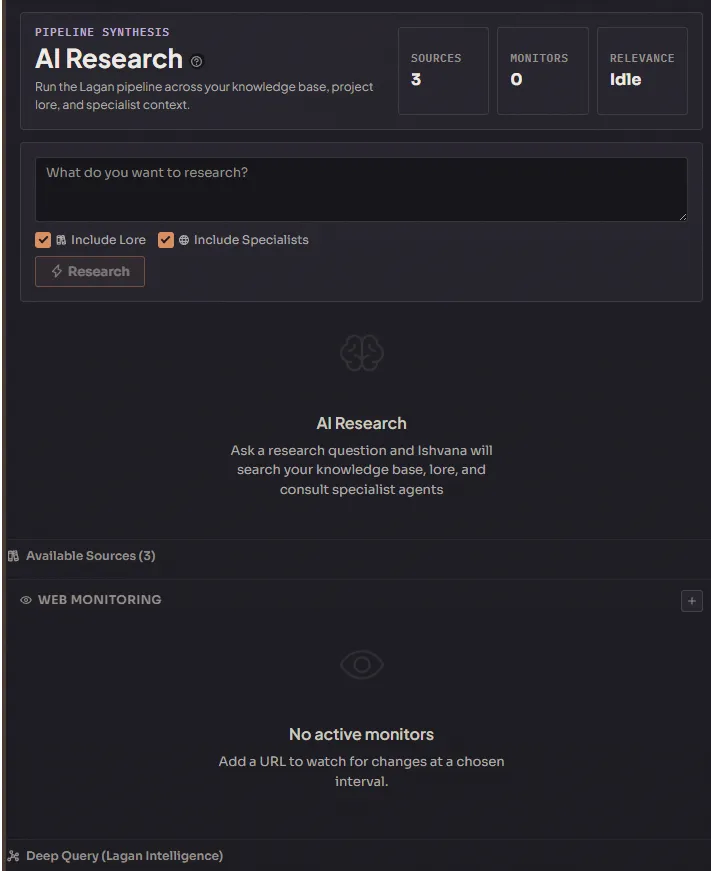
The headline feature. A full research pipeline that takes a question, queries your knowledge base, optionally pulls in relevant project lore, optionally consults specialist agents, and returns:
- A context summary with a relevance score against your question.
- The research terms the system identified from your query.
- Retrieval-augmented-generation results with source attribution.
- Lore matches from your Legendry.
- The whole thing is copyable as formatted Markdown, so you can paste it into a scratch document or a lore entry with one click.
The pipeline is what distinguishes this module from “a browser with bookmarks.” It’s the thing that reads your saved research and your own lore together and answers questions using both, with citations. Use it when you want a synthesized answer instead of a list of links to read yourself.
A typical research session
Section titled “A typical research session”- Open the Research tab. The bookmarks dashboard loads.
- Type a URL or search query into the toolbar. Press Enter.
- The page loads and the content extractor runs automatically in the background.
- Click Bookmark to save. Tags and a summary are generated automatically.
- Click Analyze if you want a structured breakdown before reading the full article.
- Use the sidebar tabs to check analysis, peek at the extracted text, or jump to another bookmark.
- When you’re done gathering, open the research pipeline and ask a synthesized question against everything you just collected.
- Copy the pipeline’s output as Markdown. Paste it into a lore entry, a document, or a scratch note.
Every saved bookmark feeds the next session. The more you research inside Ishvana, the smarter the semantic search and the research pipeline become, because both of them read from your own accumulated library.